How to access PIP -e svn+ specific revision eggs via normal import

PIP lets you install specific revisions from SVN if you use the -e flag.

pip install -E env -e svn+http://code.djangoproject.com/svn/django/trunk/@16406#egg=django

The problem is that unlike installing without the -e flag, it installs the source files in /YOURENV/src/HERE/, meaning if you’re simply adding your virtualenv’s site-packages to your python path, python won’t find these modules.

I found the answer here http://stackoverflow.com/questions/1875037/pip-wsgi-import-errors

The solution

Use the python site module and addsitedir function which automatically searches *.pth files in the directory and includes those paths.

import site
site.addsitedir('path/to/my/site-packages/')

import django
# success

OSX Terminal Colors Suddenly Gone – LSCOLORS CLICOLOR

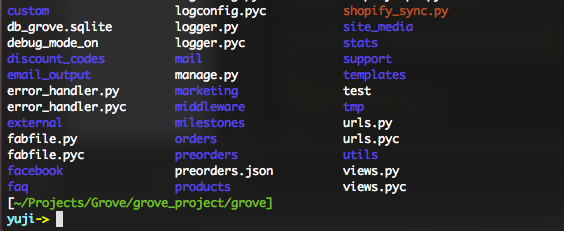
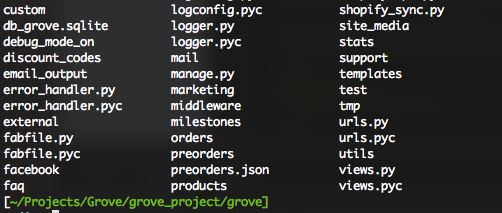
If for whatever reason your ls command is no longer showing colored directories and looks like so:

Check the output of echo $TERM

$>echo $TERM
xterm-256color

It should be xterm-color

Mine was xterm-256color — probably set when my graphics card bugged out.

Edit your terminal config file (mine is bash, so ~/.bash_profile or ~/.bashrc) and add export TERM=xterm-color somewhere (or just enter into your bash shell for temporary results).

$>export TERM=xterm-color

After setting TERM to xterm-color, my directories look like they used to:

Installing Solr and django-haystack on Ubuntu with OpenJDK

Install django-haystack

This part is easy – django-haystack is just a python module.

pip install django-haystack

Install OpenJDK and Solr

Solr is a Java program – we need the Java Runtime Environment to run our Solr server.

I’ll be using OpenJDK and solr-jetty on Ubuntu.

apt-get install openjdk-6-jre jetty solr-jetty 

Find and configure solr

$ find / -name "solr" 
/var/lib/solr
/var/lib/jetty/webapps/solr
/usr/share/solr
/etc/solr

Now that we know our solr config files live in /etc/solr/conf, have django-haystack generate the solr schema.xml file.

python manage.py build_solr_schema > /etc/solr/conf/schema.xml

Tweak solrconfig.xml

I’ll need to enable the MoreLikeThis handler by adding “” to the solrconfig.xml file.

Modify Jetty to run on port 8983 – default solr port

My jetty defaulted to port 8080 – a port I commonly use for other projects (nginx -> apache). Also, the default solr port is 8983 which my development environment uses. We’ll need to update jetty to use a different port.

I found the config file by searching for the jetty folder (/etc/jetty/jetty.xml) – modify the “port” line to whatever port you have set in your django settings HAYSTACK_SOLR_URL

<Set name="port"><SystemProperty name="jetty.port" default="8983"/></Set> 

Start jetty

Navigate to your jetty folder, and run.

$ java -jar /usr/share/jetty/start.jar

Build your solr indexes

Now we need some data to search against.
Assuming you’ve set up django-haystack, run the rebuild_index management command.

$ python manage.py rebuild_index

Set up cron job to rebuild indexes however often you need

$ crontab -e
$  0 0 * * * python manage.py update_index --age=24 --remove
Unix – Find Largest Files / Free Space

I was looking for places to free up some space on our server – I recalled accidentally having a 12GB tar archive at one point of our custom files.

Check free space

$ df -k
# list all free space
/dev/xvda             15117312  12306456   2196456  85% /
devtmpfs                773972       112    773860   1% /dev
none                    774176         0    774176   0% /dev/shm
none                    774176        56    774120   1% /var/run

Find largest files in a given directory

Use the du command to find the size of a given directory.

Use du -h to get human friendly results

$ du -h
8.3G    .

List all files individually

To list all files individually, use the -a flag

$ du -a -h
16K     ./images_6.jpeg
112K    ./18175_proof.jpg
64K     ./100_3829...jpg
284K    ./19913_final.eps
104K    ./super_heroes.jpg
36K     ./siteyanyo.jpg
8.3G    .

List all files and sort by file size

To sort by file size, pipe the output into the bash sort command. The gotcha is that you can’t use -h as sort thinks 1000K is bigger than 8G.

Use the -B flag to specify block size

From du –help:
SIZE may be (or may be an integer optionally followed by) one of following:
kB 1000, K 1024, MB 1000*1000, M 1024*1024, and so on for G, T, P, E, Z, Y.

$ du -aB M | sort -n | tail -n 4
34M     ./Helvetica.pdf
46M     ./Harleking_TT1.psd
47M     ./Logo_1.psd
8469M   .

Note I used tail to get the last 3 lines.

You can also pass the -r flag to sort to reverse the order and get the first 4 lines via head – if that’s more intuitive as the “top” files.

$ du -aB M | sort -nr | head -n 4
8469M   .
47M     ./Logo_1.psd
46M     ./Harleking_TT1.psd
34M     ./Helvetica.pdf

Grove Server Upgrade

I’m moving Grove’s backend servers to a bigger VPS for some planned extra load on the site.

While the occasional terrible unix-glitch-that-I-don’t-understand happens, I think the risk is worth the reward.

Today’s problem was due to an incorrect static IP address setting leading me on a wild goose chase. That, and trying to SSH to the wrong IP address leading me on yet another wild goose chase messing with my firewall.

Downtime went from a planned 12 minutes to a total of around 30-45 minutes as I swapped the DNS from one server and back a few times.

Lesson learned: do not deal with your server at night. Take it down mid-day when your brain is at its peak. Hah! (I will probably never do that, but it actually makes sense.)

I’ve decided to start going to some Python user groups and hopefully make some friends in the industry. When it comes to server stuff, you really need some friends you can count on calling 🙂

Ubuntu / Unix Server – Linode connection timed out; no servers could be reached.

I’ve been battling this problem for a while.

I opened all firewalls, killed ufw, killed iptables, still I was unable to get any connections to work. Ping / dig / external DNS / all failed.

tcpdump showed incoming connections failing but “something” was making it here.

Turns out the problem was… an incorrect value in my /etc/network/interfaces file for my eth0.

Make sure that your IP address is listed in ifconfig.

ifconfig | grep my_ip_address

My static IP was missing a few digits.

Set the correct value, restart networking, and we’re good to go.

/etc/init.d/networking restart

Django – Haystack – Solr — Setup Guide

I’ve been needing a search engine and tried Sphinx, Haystack-Whoosh, and Haystack-Solr.

I’m quite happy with Haystack-Solr based on the results it provides out of the box. Whoosh clearly needed some more configuration to weigh multiple OR matches higher.

TERM1 OR TERM2 OR TERM3 OR TERM4 should give a match the highest score that has all 4 terms but it didn’t.

First, install solr.

# I'm on a Mac, so I used homebrew
brew install solr

# ...if you're on Ubuntu install solr-jetty
apt-get install solr-jetty

Next install solr’s python bindings and django-haystack

pip install pysolr
pip install django-haystack

Configure django-haystack, set up the search index classes according to the docs

http://docs.haystacksearch.org/dev/tutorial.html#configuration

Add the required solr fields to settings.py (solr server location)

Setup Solr

Run the solr schema file generation management command and paste it into your solr config directory.

python manage.py build_solr_schema > solr_schema.xml

mv solr_schema.xml /usr/local/Cellar/solr/3.1.0/libexec/example/solr/conf/schema.xml

Start solr

cd /usr/local/Cellar/solr/3.1.0/libexec/example/
java -jar start.jar

Generate index

python manage.py rebuild_index

Done! Start using haystack

from haystack.query import SearchQuerySet
results = SearchQuerySet().auto_query('my search here')

Mac OSX — Psycopg2 Symbol not found: _PQbackendPID Expected in: flat namespace

This problem was tough to hunt down and various instructions didn’t work. Switching to 32 bit python did not work.

Here’s what did work for OSX 10.6.8, Postgresql and psycopg2 2.4.2

1. Download the source Psycopg2 from http://initd.org/psycopg/download/
2. Extract the tarball and cd into the directory.
3. Run easy_install on the directory (do NOT run easy_install psycopg2) – run `easy_install .`
4. Done.

I also modified the setup.cfg file line pg_config to the directory returned by `which pg_config` BUT it occurs to me that the line was commented out – so the solution must be to run easy_install on the latest version.

Shopify — Blog on Homepage / Index

Somehow this isn’t easy information to find.

Blogs can be accessed via the global variable “blogs”

blogs.my_blog.articles is an array of blog posts in the blog named my_blog.

{% assign blog = blogs.my_blog_name %}

{% for article in blog.articles %}
    {{ article.content }}
{% endfor %}