Django/Python on Windows — Setting PATH Environment Variable

What is the PATH?

The PATH environment variable is in general a list of directories that the operating system will search through when programs attempt to execute a command.

For example, say we go into the windows command prompt or Ubuntu’s bash shell and type in “foobar” – the operating system will attempt to locate an executable (program) named “foobar” in the folders listed in the PATH. Replace “foobar” with “python” or “django-admin.py” and you start to understand why this is useful.

How do we set the PATH?

To set the PATH on Vista or Windows 7:

Push the windows button and type “environment variable” on the search bar and select “Edit environment variables for your account”.

Non Vista/Windows 7 users just right click on My Computer, go to Properties, click Advanced Properties, then the Environment Variables button to get to the same place.

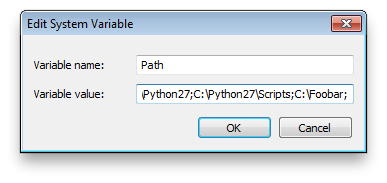
In the Environment Variables screen, look for the “Path” variable under the “System Variables” section on the bottom. If it doesn’t exist, just make a new one.

Edit or enter in folder paths separated by ; — Append whatever you like to the string ending with a “;”

Do not delete the default path – append to it.

Path2;Path2;Path3;

Done!

Django — Registering Multiple Admin Sites

To register multiple admin sites with Django, import AdminSite from django.contrib.admin.sites

Instantiate the class and you have your new admin site that you can import anywhere and register the urls for.

Note that the register function is directly in the AdminSite, it is not AdminSite().site.register but AdminSite().register

#!admin.py
from django.contrib.admin.sites import AdminSite

my_new_admin = AdminSite(name='My New Admin')

my_new_admin.index_template = "myadmin/index.html"

#!urls.py
from myproject.admin import my_new_admin

(r'^my_new_admin/(*.)', my_new_admin.root)

#!model admin.py
from my_admin import my_new_admin
my_new_admin.register(MyClass)

Linux — mmmm back in a pure programming environment (minus OS independent monkey work)

Run linux to administer a linux server. I’m running the same OS on my desktop as my server partition — doesn’t it make sense to do so?

To me it’s more about the focus I get from switching over. Minimizing distractions is the goal of programming. Working on Ubuntu puts me in the same place as my server, not cluttered with a completely different OS, remotely working with a combination of putty terminals and or tortoise SVN on windows.

Nah. This is much better.

It helps that there are all of daft punk’s albums on this side of the border. What better to drown out all noise?

Alright, here we go.

Python CSV — Reading and Writing Simultaneously

Pythons CSV module turns your csv into an iterator for efficiency and your data is gone after you do myreader.next() 

I just wanted a quick way to add and edit entries in our database of wines via a spreadsheet. I suppose I could have used pyExcelerator, but I magically decided to go with CSV. 

Trying to write on the same file as you are reading from, even if you do open(‘blah’, ‘rw+’) won’t exactly work. 

My solution was just to write a function that takes a path as it’s argument, and have the function read from the CSV from that path & create a reader/writer instance, with the writer file being temporary. It’s important to keep a reference to it, like:

fread=open(path, 'r')
fwrite=open(path.replace('.csv','_temp'), 'w')

Then I read as I wrote into this temporary file called whateverfile_temp. Specifically, I needed the csv to be updated with primary key values from the database if an object was created so that future uploads of the same file would not result in duplicates but UPDATE.

I kept having trouble because I couldn’t close the file when I started using it as the official docs do: reader/writer = csv.reader/writer(open('blah','rw')) It just resulted in a mangled csv.

But now I could close the files, then replace the original csv that was just read with the new one written.


fread.close()
fwrite.close()
os.rename(mypath.replace('.csv', '_temp'), mypath)

Sure, inefficient, but for me it will come in very useful.

Python — File Write Modes

As a newbie, I often couldn’t find information on file write modes, like rb, U, etc. 

Python has great documentation…. open a python interpreter, type help(file) and you will see:

class file(object)

file(name[, mode[, buffering]]) -> file object

Open a file.  The mode can be ‘r’, ‘w’ or ‘a’ for reading (default),

writing or appending.  The file will be created if it doesn’t exist

when opened for writing or appending; it will be truncated when

opened for writing.  Add a ‘b’ to the mode for binary files.

Add a ‘+’ to the mode to allow simultaneous reading and writing.

If the buffering argument is given, 0 means unbuffered, 1 means line

buffered, and larger numbers specify the buffer size.

Add a ‘U’ to mode to open the file for input with universal newline

support.  Any line ending in the input file will be seen as a ‘\n’

in Python.  Also, a file so opened gains the attribute ‘newlines’;

the value for this attribute is one of None (no newline read yet),

  ‘\r’, ‘\n’, ‘\r\n’ or a tuple containing all the newline types seen.

‘U’ cannot be combined with ‘w’ or ‘+’ mode.


Mmmm. Perfect. One of the reason why I like Django so much is the documentation. Freaking amazing! So many python questions have been self answered by just typing help( blah ). 


Django — Setting DJANGO_SETTINGS_MODULE / Environment Variables from Python

You know, I learned this and completely forgot after months of not dealing with it. Google searches are so difficult to reach the right subject.

I’m certain this will be something I refer to in the future..

Setting environment variables via Python is as simple as:

import os
os.environ['DJANGO_SETTINGS_MODULE'] = 'myproject.settings'

Of course, this doesn’t permanently set the variable, but if you have a script that needs that envvar, perfect.

Enjoy.