I was trying to log my form errors in a view.
It’s my_form.errors.items()
Yuji's Increasingly Infrequent Ramblings
I was trying to log my form errors in a view.
It’s my_form.errors.items()
I’m newly converted to Mac mainly for the possibility of iPhone app development and a native unix-like system for hooking into my servers.
For web design, it turns out there are some cool productivity improvements, despite some productivity flaws (window management is a pain but you learn other ways to cope).
When you need to make a quick mockup of a website, or if you’re building drafts of a site, there are some serious Mac advantages.
My previous workflow was to take a screenshot, open a new file in photoshop (which recognizes the size of your current clipboard image on both OS), paste the whole thing, crop what I need and get working.
Theres’a a better way, and the first is the screenshot capability built into the OS.
All the capture region commands have the option to use Spacebar to select a window, with fancy BG dropshadow effects.
Cmd Cntrl Shift + 4 will select a region and save it to the clipboard, which means you can paste a random snippet off anything into photoshop.
Cmd Shift + 4 will select a region and save it to the desktop, useful for sending to somebody or uploading to wordpress.
Remember, pressing space while in selection mode will allow you to select a full window to copy to pasteboard or desktop.
As a bonus, it will display the pixel dimensions of the selection meaning you can use it to quickly measure the size of anything in pixels.
The drag and drop functionality from browser to Photoshop is pretty great.
Drag and drop any Image from the web to photoshop and it works as if you’ve saved it and dragged it into your photoshop, except it involves zero hassle.
I can search for an image of a wine bottle, drag it into photoshop, do a color overlay and I have a mockup of an icon in 10-15 seconds.
Will update as I find more …
Well, the docs as of today on aggregation don’t mention anything about the specific types of Aggregation possible. It mentions Avg, Min, Count, etc.
Update from Derek below: actually, it’s in the docs in the Queryset API docs under “Aggregation Functions”
http://docs.djangoproject.com/en/dev/ref/models/querysets/#sum
Missed that… but there should be a link back there from the main aggregation docs.
Anyhoo, I found another type Sum in django.db.models.
Just apply
MyQueryset.aggregate(Sum('my_field')) to get the sum of all my_fields in your queryset.
Ahh yes, looks much like this one here:
Happens when you return something directly instead of in an HttpResponse-type object.
Make sure your views return django httpresponse objects, not lists, strings, etc.
I have been living with auto transform handles on my objects for the past week and wondering how to turn it off.
I searched, found nothing.
Then, I found a freaking button I’ve never seen before (clearly):

Show Transform Controls.
Turn it off. Fixed.
I had a branch set up on Server A that I committed to the remote repository.
I had a branch set up on Server B that I committed to the remote repository.
Now, Remote Repository has branch from A and B.
Pulling branch B or branch A from either server would result in merge conflicts.
How to do I get git to pull overwriting /everything/ ? I just need exactly what is on the remote server.
Now I’m starting to sound very stupid: I just needed to do
git fetch origin branch
Apparently, git pull always merges with the current branch. Not proud to admit I’m just starting to get Git.
http://stackoverflow.com/questions/292357/whats-the-difference-between-git-pull-and-git-fetch
Set up WordPress running on Apache through an Nginx reverse proxy.
Assuming you have apache2 installed, grab the relevant PHP5 libraries:
apt-get install libapache2-mod-php5, php5
Set up an apache VirtualHost that listens on some port, say 8080.
Listen 8088
ServerName Blah

DocumentRoot /path/to/wordpress
Options FollowSymLinks

AllowOverride All
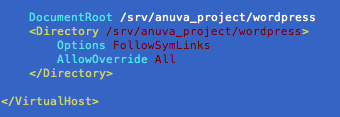
Set AllowOverride to allow wordpress to use .htaccess.
You may need to install the apache rewrite module.
locate mod_rewrite.so revealed I have mod_rewrite in /usr/lib/apache2/mod_rewrite.so, so I added a file in /etc/apache2/mods-enabledthat contained:
LoadModule rewrite_module /usr/lib/apache2/modules/mod_rewrite.so
Next up is to proxy some address to the apache server listening on 8080.
Set up a location in your nginx server configuration files to point proxy_pass the traffic to your apache server.
Inside your server directive, you’d have something like:
 location /my-blog/ {

proxy_pass http://127.0.0.1:8080;

proxy_redirect off;

# more settings...

}
and bam!
visit /my-blog/ and your wordpress should start.
WordPress doesn’t know it’s living in a subdirectory because the request is proxied from Nginx.
You can fix the links from pointing at the root domain by modifying the home and home_url settings in the wp_options table to include yourdomain.com/my-blog
(also found in the general settings tab of WP admin)
It seems the admin isn’t 100% good at dealing with WP living in a subdirectory. It tends to send me off to the root domain for searches and various other misc links.
I fixed this by making a rewrite rule in nginx that directs all traffic from /wp-admin to /my-blog/wp-admin/.
location /wp-admin/ {

rewrite ^/(.*)$ http://yourdomain.com/my-blog/$1 permanent;

}
Finally, we have our blog..
My slideDown() effect was making my element appear but immediately disappeared after the animation.
I read fixes from setting hasLayout IE property by using min-heigh:0 or zoom:1, but none did the trick.
I found out I had no defined doc type.
I set it to 1.0 Transitional and everything works again…
I forget this handy method often.
$('img', this) selects img within this.
To select every nth item, use the child selector “nth-child()”
To select every 5th child, use 5n
$("#mylist li:nth-child(5n)").stuff()
Type in a whole number to get the nth item only.
 Yuji Tomita